Microsoft Entra
Hovi Studio provides an intuitive interface for issuing verifiable credentials to recipients through established connections. The Issue Credentials module allows tenants to seamlessly issue credentials based on predefined credential templates.
Prerequisites
Before issuing a credential template, ensure the following:
- You are registered with the Hovi Studio.
- You have completed the onboarding process, which includes creating an ecosystem.
- You have a credential template.
Credential Issuance Modes
We support two credential issuance flows:
1️. Pre-Authorized Code Flow
- The holder scans the QR code
- A verification code is required
- The holder must enter the code before accepting the credential
2️. Authorization Code Flow (No Pre-Authorization)
- The holder scans the QR code
- No transaction code is required
- The credential can be accepted immediately
Steps to issue a credential (Authorization Code Flow)
Follow these steps to issue a credential in Hovi Studio for Microsoft Entra ecosystem.
-
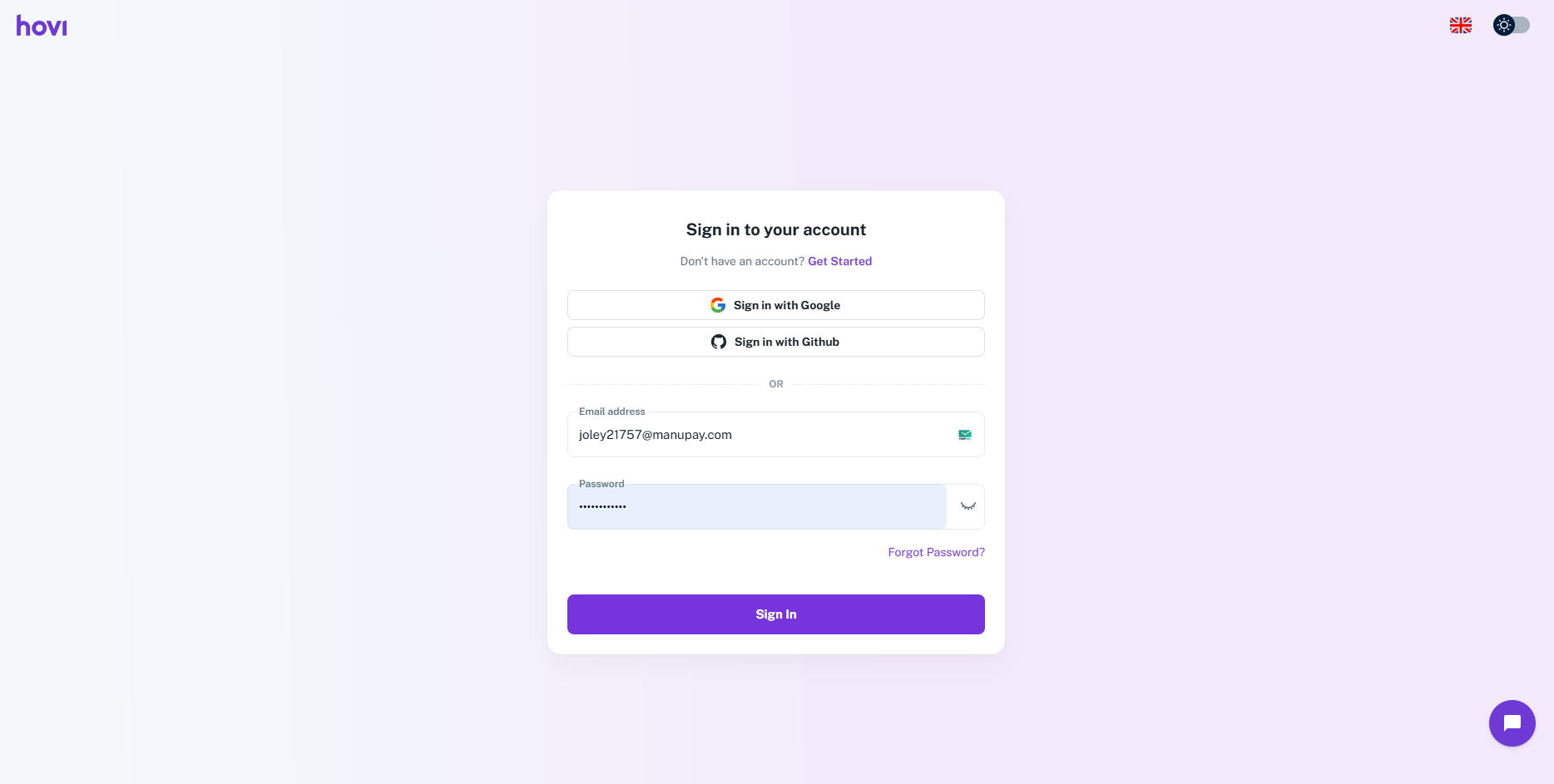
Sign in to Hovi Studio.
-
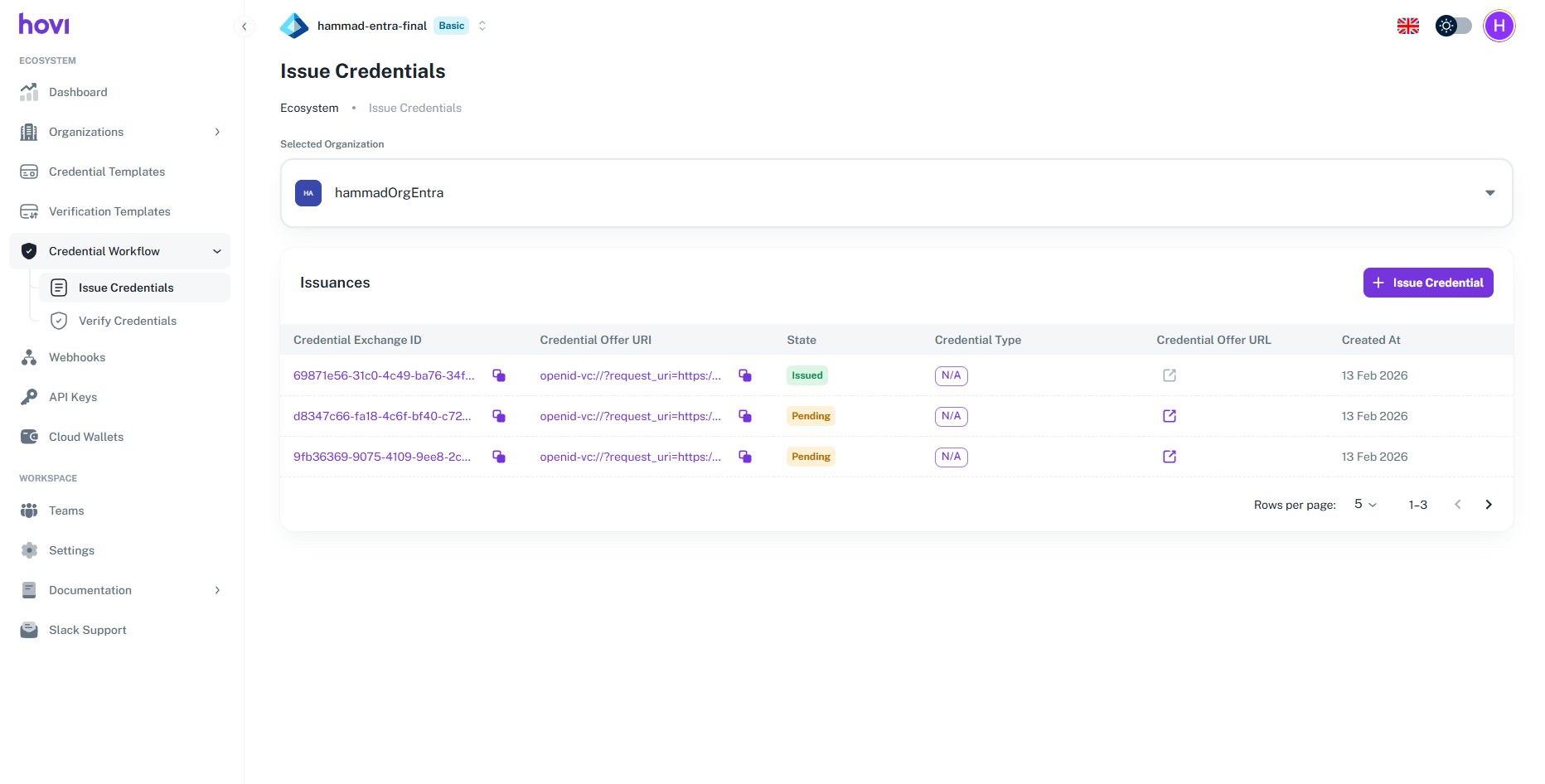
In the left-hand navigation menu, click on the Credential Workflow.
-
Under this dropdown click on the Issue Credentials.
- Then at the right click on Issue credential.
- Then at the right click on Issue credential.
-
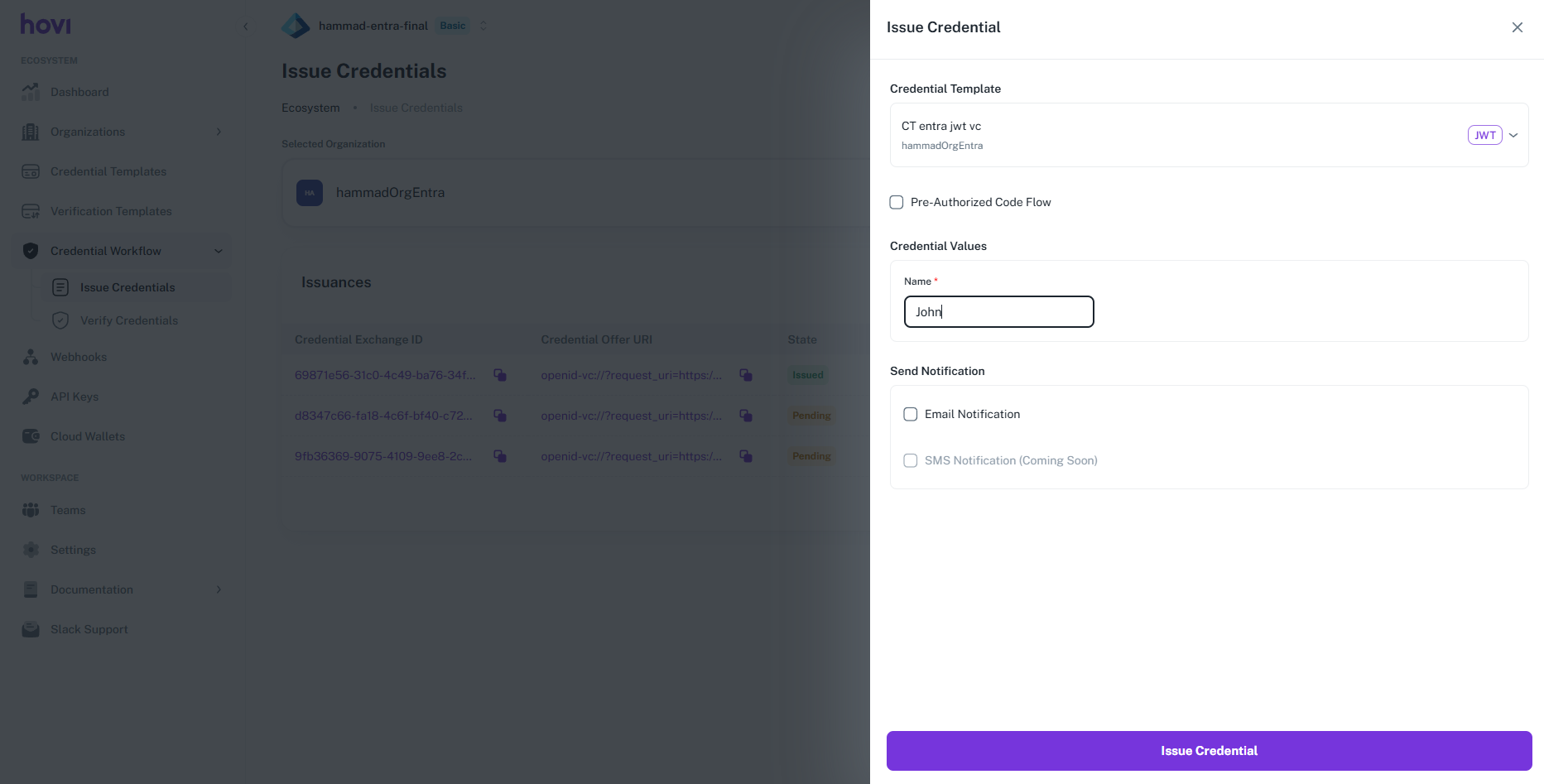
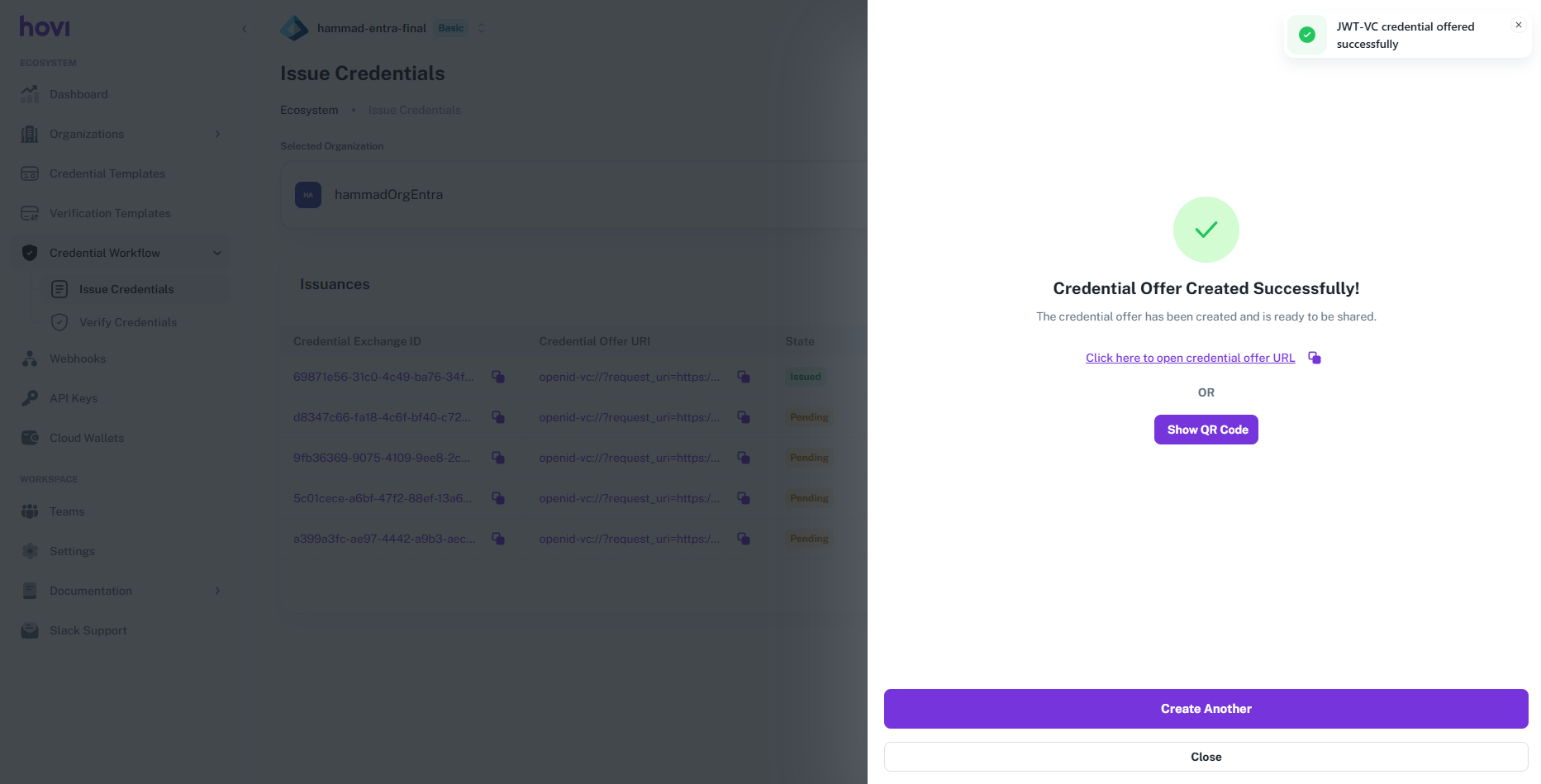
Select template, put Credential Data and then click on Issue Credential
-
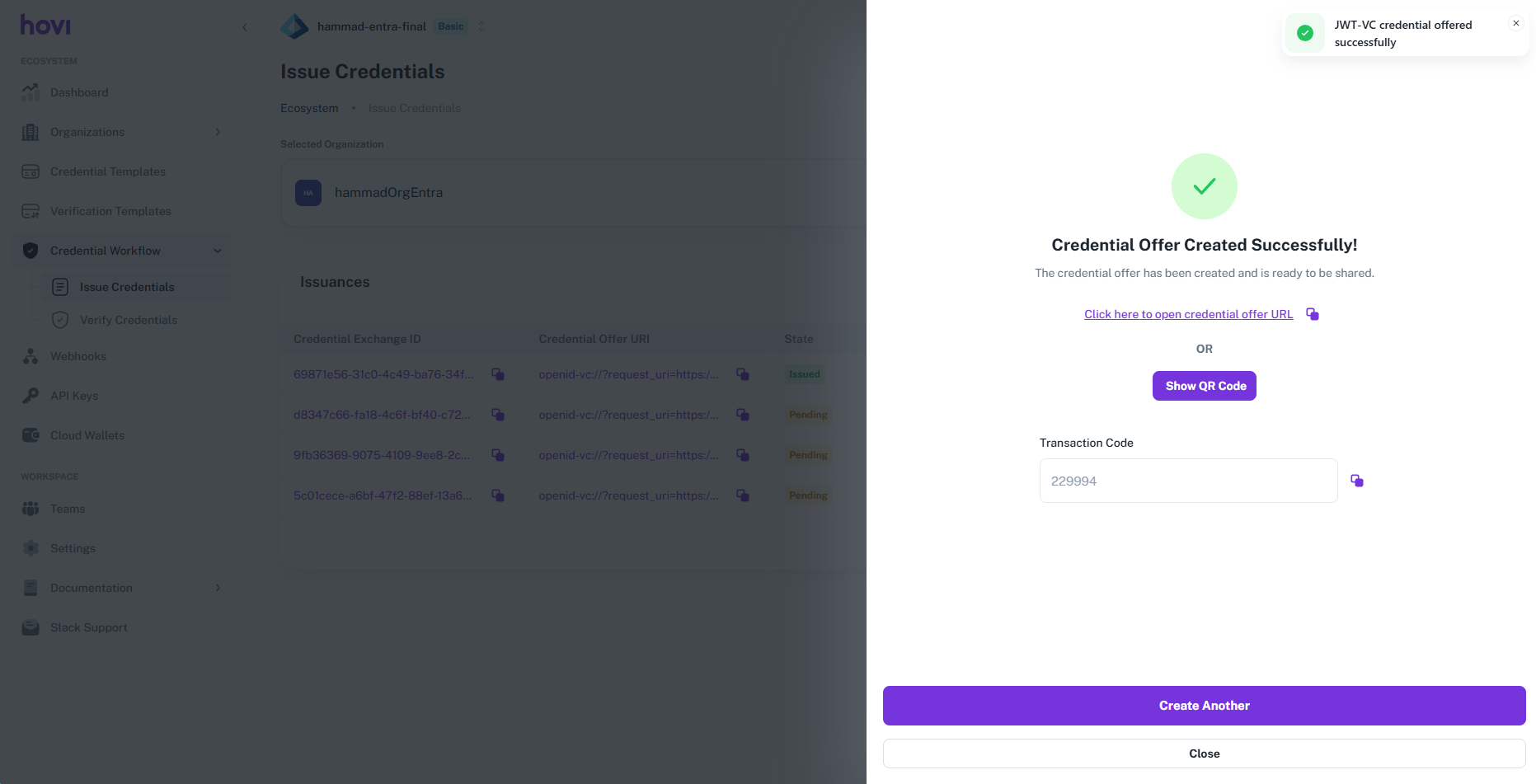
Click on Show QR Code button and scan the QR code the credential will be added in your wallet shortly.
Steps to issue a credential (Pre-Authorized Code Flow)
Follow these steps to issue a credential in Hovi Studio for Microsoft Entra ecosystem.
-
Sign in to Hovi Studio.
-
In the left-hand navigation menu, click on the Credential Workflow.
-
Under this dropdown click on the Issue Credentials.
- Then at the right click on Issue credential.
- Then at the right click on Issue credential.
-
Select template, put Credential Data and then click on Issue Credential.
- Check the Pre-Authorized Code Flow checkbox.
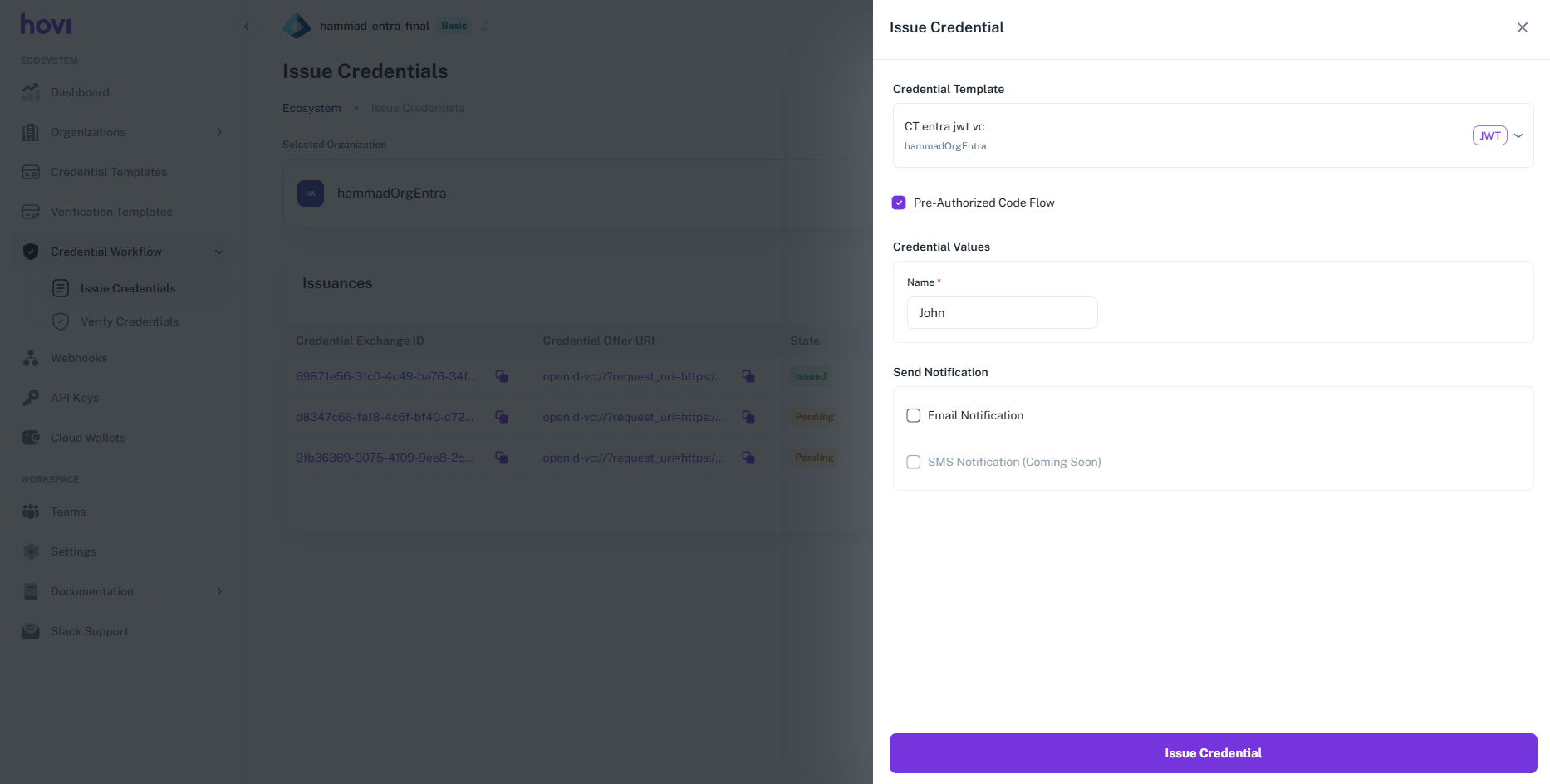
- Check the Pre-Authorized Code Flow checkbox.
-
Click on Show QR Code button.
- Scan the QR code.
- Enter the transaction code, accept the credential.
- The credential will be added in your wallet shortly.